
Feature map
Everything Shortip does, in one place
63 features in eight parts, all live today, in plain words. Each part has a real screen from the demo account.

01
The loyalty club, from the customer's side
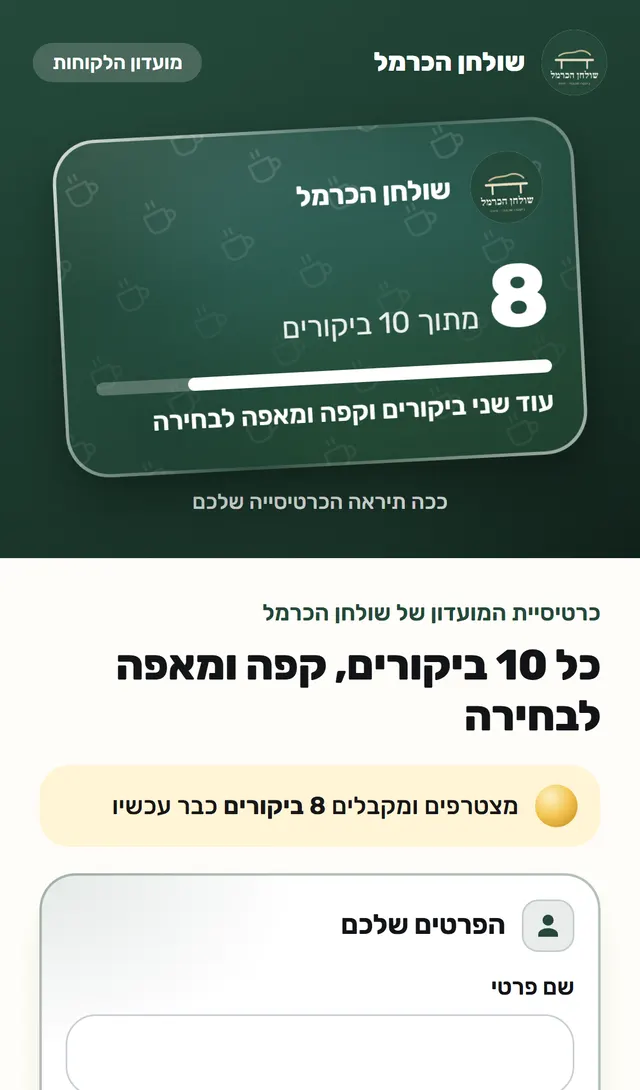
Join with a scan, and the card is saved in the phone wallet. No app.
- The customer scans, types a phone number and gets a code. No app to download.
- No signal? The staff member signs the customer up from the scanner.
- You can give a few visits as a gift when a customer joins.
- The card is saved in the phone wallet, on Android and iPhone.
- After every visit the card in the wallet updates: 2 more visits to a gift.
- Near the business, the iPhone offers the card by itself on the lock screen.
- Every customer has their own page: how many visits, what they received, when the next gift is.
- The card tells the customer: at your pace, the gift is in about a week.
- Address, today's hours, call and directions, inside the card.
- The customer can send a friend the link to join.
- A customer whose phone is in Arabic gets everything in Arabic.
- Changed phones? The card is recovered with a code, and the visits stay.
- The customer is in control: they can delete the card or ask for no marketing.
- In the birthday month the card reminds the customer of the reward you set.

02
Stamping at the counter
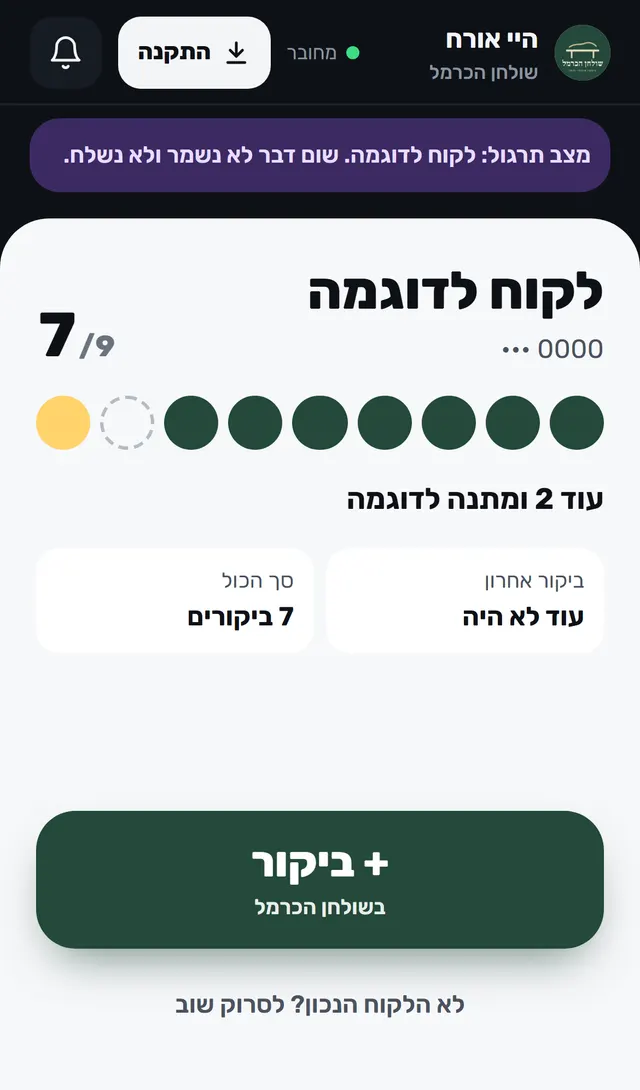
Each employee from their own phone. The scan identifies; the visit is recorded only on a press.
- Each employee from their own phone: scan the card and press the button.
- The scan only identifies. The visit is recorded only when the employee presses.
- Forgot their phone? Find them by number.
- Signal dropped? The visit is saved and sent when it returns.
- The employee offers a sticker, the customer holds their phone near it, and the visit is recorded.
- A stamp lands on the card, only after the visit is recorded.
- A sticker stamps a card once a day.
- Lost a sticker? Cancel it in two taps and print a new one.
- Many visits for one customer in a day, or cancellations by an employee, are flagged for you under "Worth a look".
- A visit recorded by mistake is undone with a reason, and you see who undid it.
- A customer with a paper punch card? Their visits move over, with your approval.
- A shift lead adds an employee or replaces their phone when you are not there.
- One phone at the counter, and each employee picks their own name.
- A message from you to your employees' phones, and you see who read it.
- Send an employee an invitation on WhatsApp, and they install the scanner.
- You stamp from your own phone too, with one tap from the home page.

03
Running the loyalty club
You set the rules: gift, package, branches and design.
- A punch card with a gift, or a prepaid package that counts down.
- A package opens only when you confirm that the customer paid.
- See who is about to finish a package, and remind them.
- Two punch cards, for example coffee and pastry, on one card.
- Several branches, with a manager for each branch and their own link.
- Your business's colors, logo and stamp.
- "Closed today" reaches the card in the wallet, once a day.
- A counter sign to print, and a picture ready to post.


04
Knowing your customers
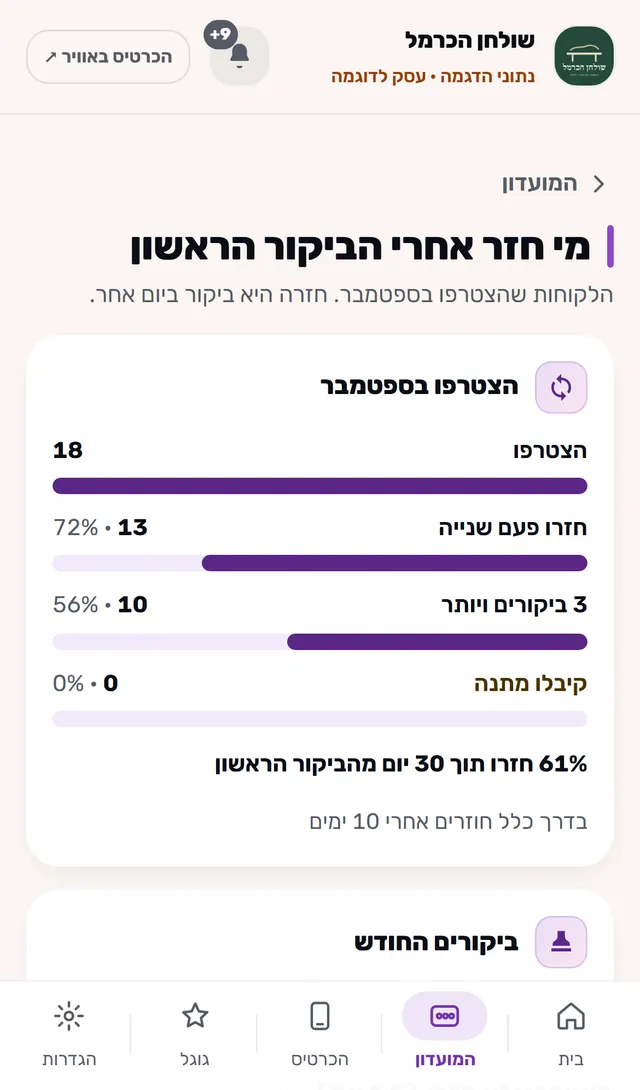
Who comes back, when, and who stopped coming.
- Who is waiting for a gift, who is close, who did not come back, whose birthday it is.
- All of a customer's visits, and a note only you can see.
- What happened today, by employee.
- On which days and hours club members come.
- Who joined last month and came back, and who did not.
- How many gifts went out this month, and who has been waiting longest.
- Which employee signed up the most customers this week.
- Your customer list, to a file, at any time.

05
Your portal
What is waiting for you today, one line for each thing.
- What is waiting for you today, one line for each thing.
- A notification on your phone when a customer left a message or a paper punch card is waiting.
- An icon on your phone's home screen, like an app.
- Lost the link? Get a login link by email.
- Every invoice you received, to download.


06
The business card and feedback
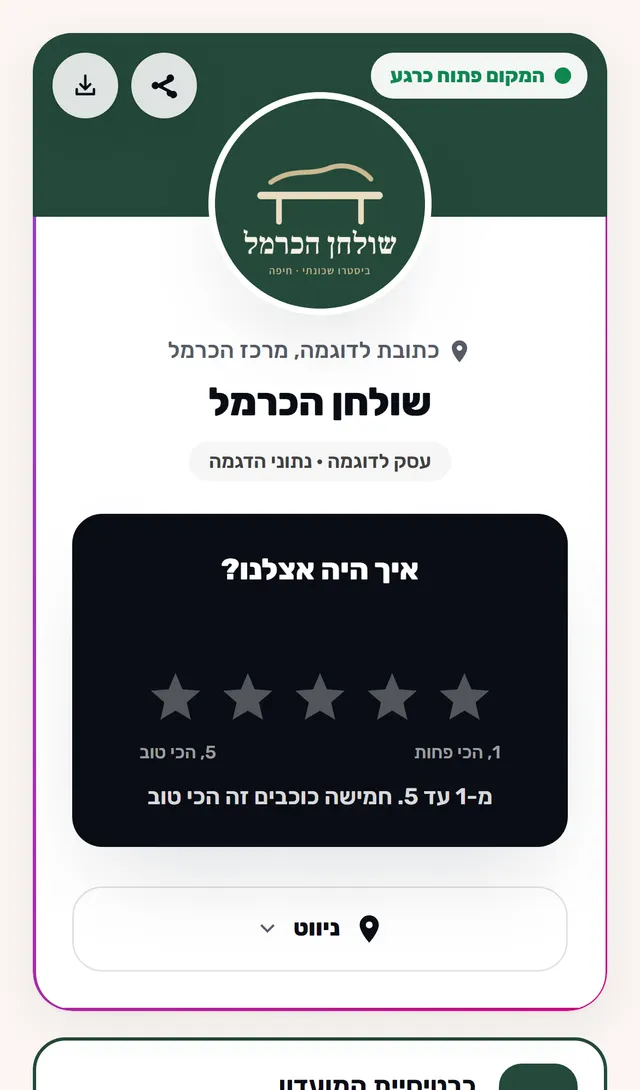
One page for your business, and a way for customers to say what they thought.
- One page for your business: links, a menu, questions, photos.
- "Closed for the holiday" at the top of the card, in your own words.
- A QR code of the card to print.
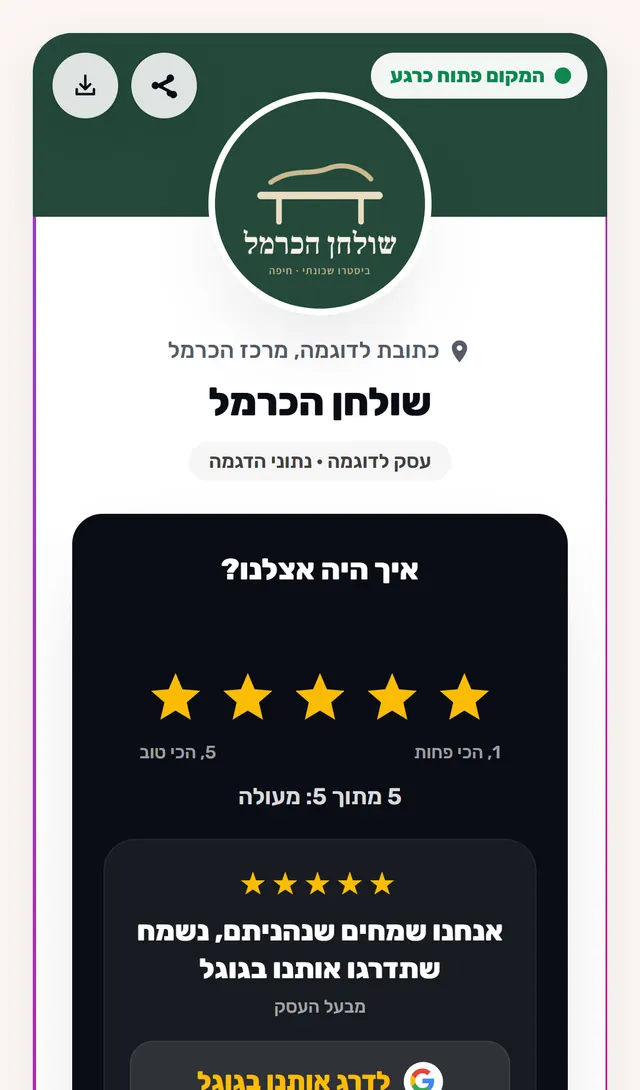
- A button to Google, or a rating first. Google is always offered for every rating.
- A customer who was bothered by something can write to you directly.
- The ratings customers confirmed on the card, the average and the breakdown.
07
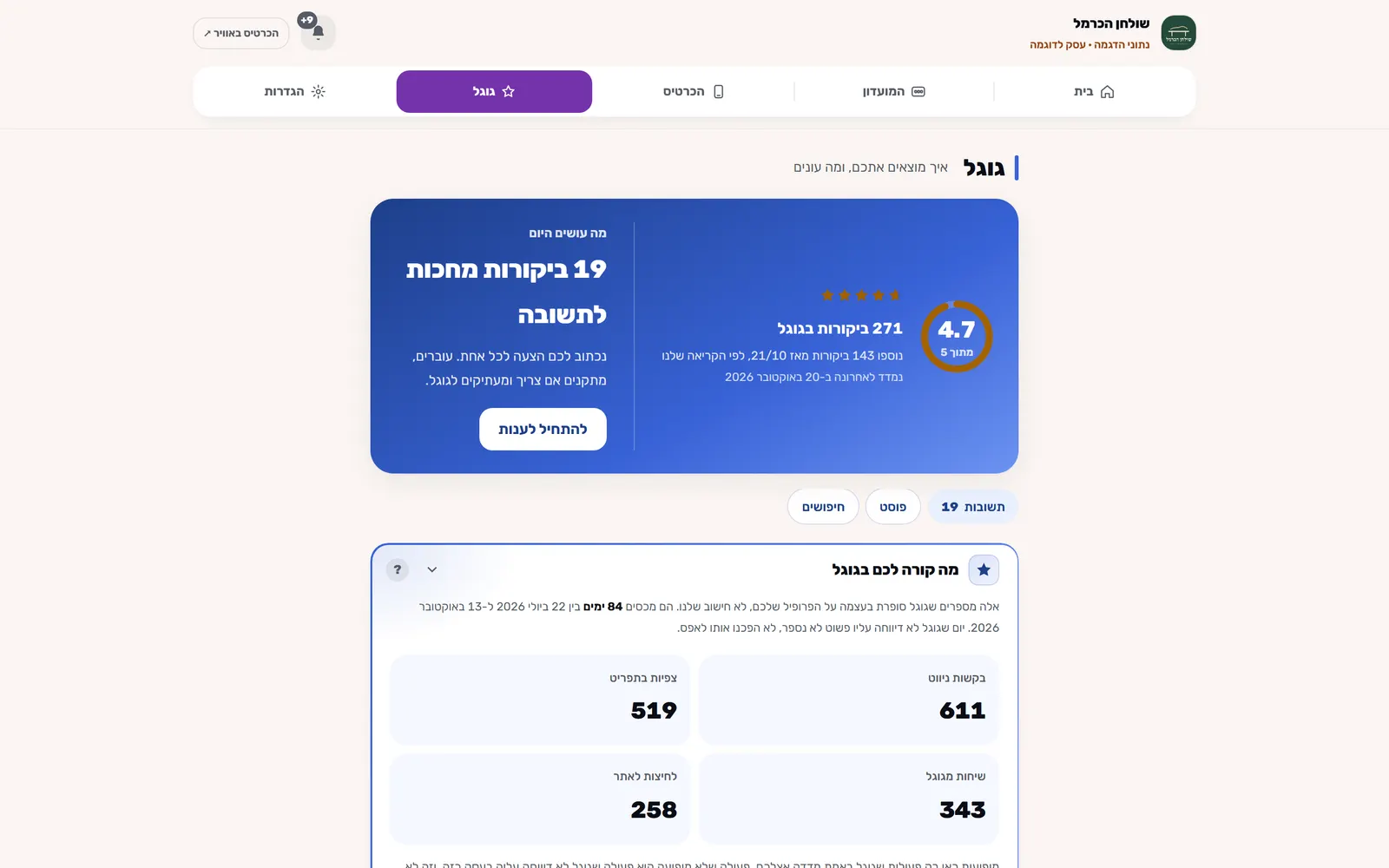
What happens in your Google Business Profile, without going into Google.
- How many people saw you on Google, called and asked for directions.
- What they searched for when they found you.
- Every review, and a ready draft reply that you edit and paste.
- If something changed in your profile, the address or the hours, you know.
- A Google post, written and published from here, only when you press.
08
The stand
Hold a phone near the stand, and it opens.
- Hold a phone near the stand, and your business card or a Google review opens.
Screenshot from a demo account. The business and its data are fictional.